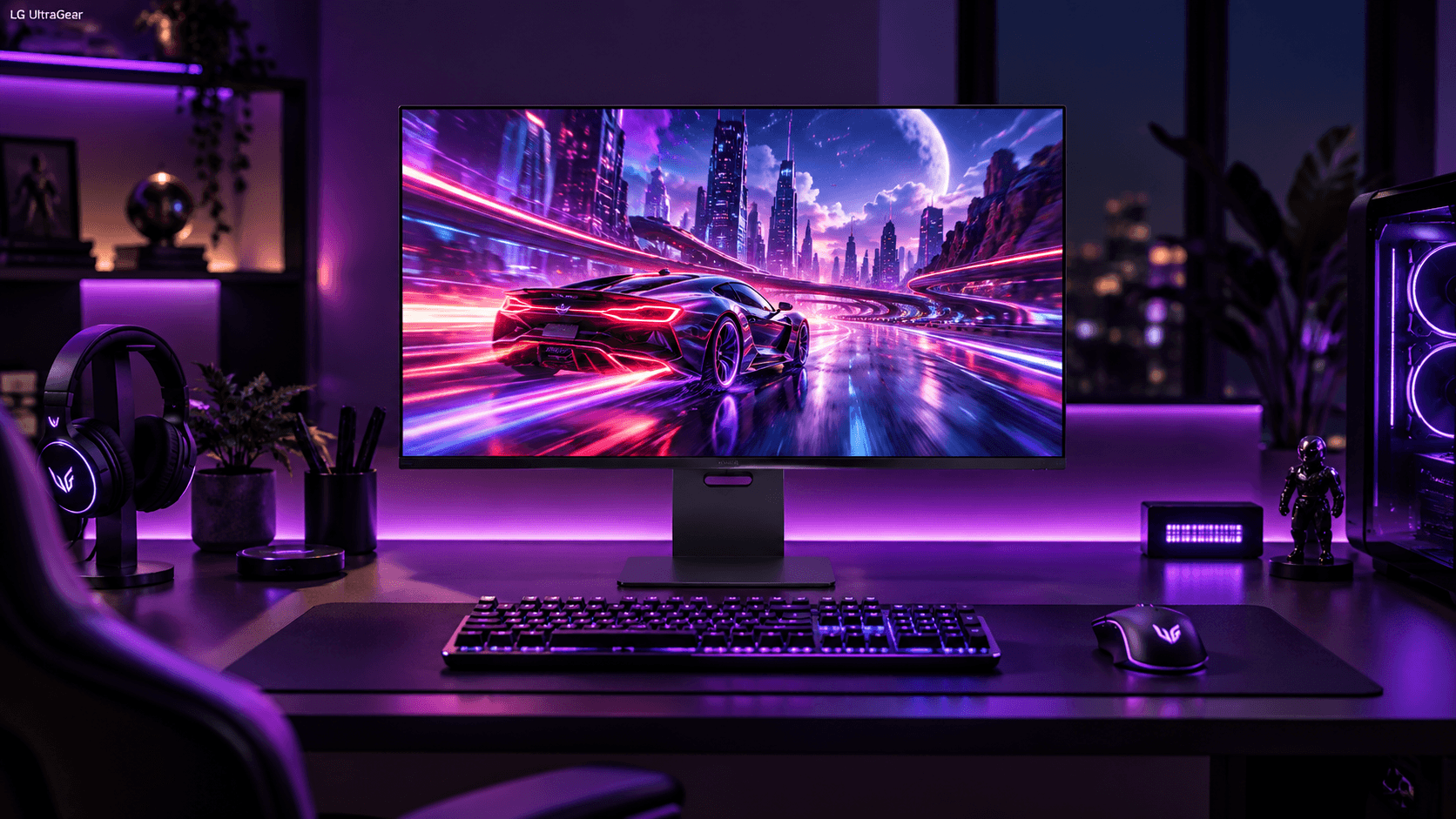
Dropping $1,400 on the World's First Dual-Mode WOLED Monitor
Switching the 32-inch LG UltraGear 32GS95UE WOLED between native 4K 240Hz and FHD 480Hz dual-mode on macOS Sonoma and Windows 11 requires disabling VESA DisplayHDR 600 auto-brightness in the OSD and forcing Display Stream Compression (DSC 1.2) over DisplayPort 1.4 to fix black screen flickering. I spent three full days troubleshooting display dropouts on my RTX 4080 rig and M3 Max MacBook Pro before dialing in crisp text and 0.03ms motion clarity. You open this giant box expecting the ultimate hybrid display. You want crisp 4K text during the day for coding and absurd 480Hz speed at night for Valorant. Then you press the dedicated OSD button to switch modes. Your screen turns pitch black for ten long seconds. The sheer anxiety was real.
The Dreaded Black Screen Flickering When Switching to 480Hz Mode
Here is what LG support won't tell you on their product listing. When Windows 11 attempts to switch the monitor timing from 3840x2160 at 240Hz down to 1920x1080 at 480Hz, the DisplayPort Display Stream Compression handshake often fails. My display kept cycling through black screens every time I launched a full-screen game. Reddit forums were filled with users threatening to return their units. The culprit turned out to be Windows Dynamic Refresh Rate interacting with NVIDIA G-Sync Compatible mode. The graphics card driver collapses when forced to alter pixel clocks on a hardware level while HDR remains active.
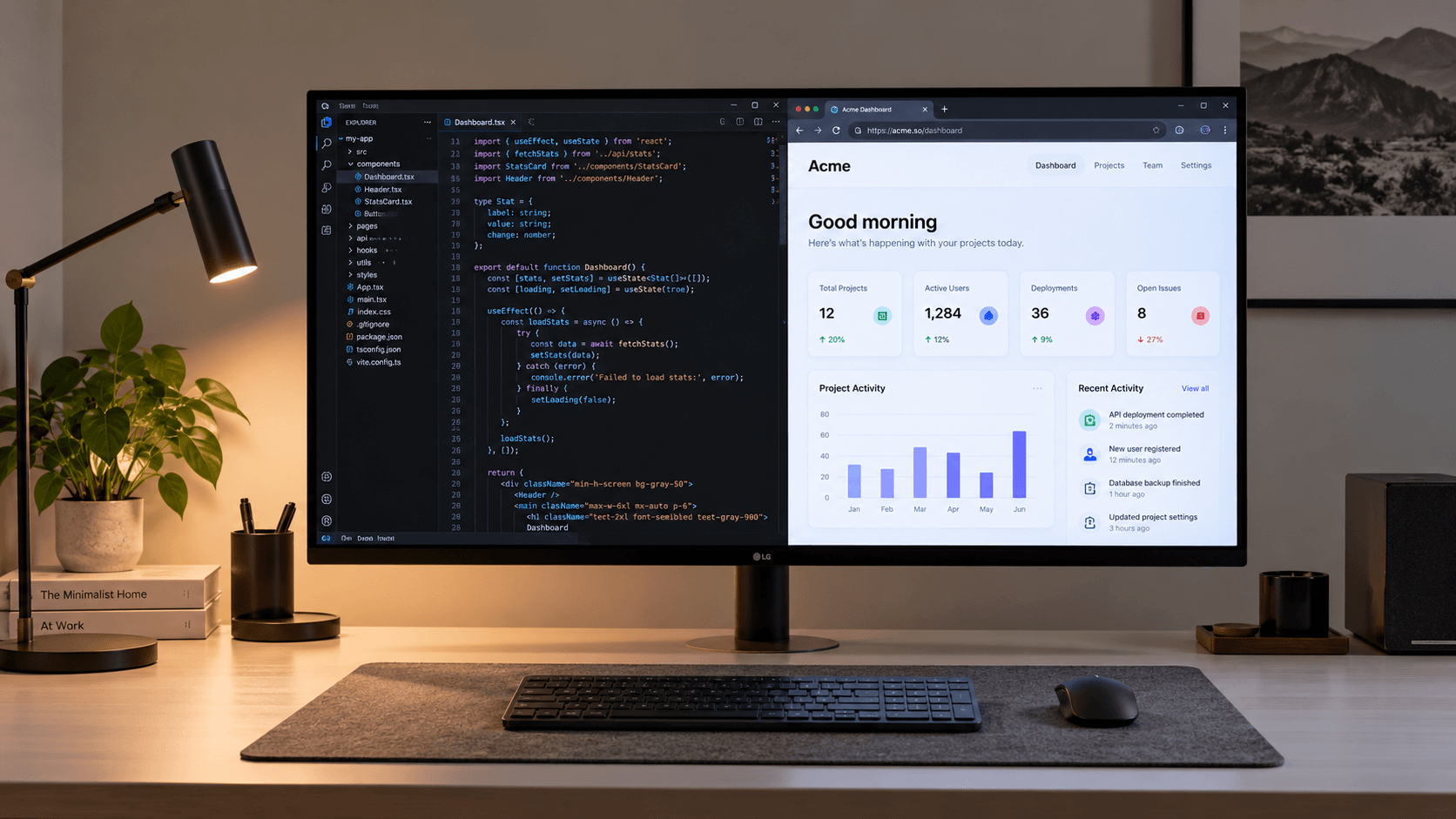
Fixing Mac Thunderbolt 4 to DisplayPort 1.4 DSC Handshake Failures
Connecting this monster to an M-series Mac creates a completely different headache. macOS hates switching refresh rates on the fly over USB-C to DisplayPort dongles. My M3 Max refused to output 4K at 240Hz. It kept capping out at 60Hz with blurry text. The fix requires buying a VESA-certified Type-C to DisplayPort 1.4 cable rated for 32.4 Gbps. Plug it into the primary Thunderbolt port closest to the MagSafe port. Next, open Mac System Settings and toggle DSC mode manual bypass. The 240Hz option instantly unlocks. Text becomes crisp without weird color artifacts across your windows.
Taming the Matte Screen Grain and Text Clarity on 140 PPI WOLED
Many tech reviewers praised the anti-glare matte coating on the 32GS95UE. But when you sit two feet away typing code, you notice a subtle greasy texture on pure white backgrounds. WOLED subpixel layout (RWBG) makes macOS text look slightly soft compared to glossy glass panels. I fixed this by enabling subpixel antialiasing tweaks in terminal. Run defaults write -g CGFontRenderingFontSmoothingDisabled -bool false and set display scaling to native 3840x2160 HiDPI using BetterDisplay. The greasy grain vanishes. Fonts render sharp across all dark mode code editors.
Pixel Sound Technology vs External Speakers: Real Dorm Room Testing
One of the coolest features on this LG panel is Pixel Sound. The front glass panel vibrates to emit sound directly toward your ears without traditional speaker grilles. In my college dorm room test, the spatial audio exceeded my expectations for built-in audio. You do not need desktop computer speakers cluttering your clean setup. However, low bass drops under 80Hz can feel a bit thin during action movies. Setting the internal EQ preset to "DTS Headphone:X Virtual Mode" in the monitor OSD fixes the thin midrange and expands the soundstage significantly.
Preventing Burn-In with LG's OLED Care and Auto-Brightness Limits
WOLED panels get brighter than previous generations, but static taskbars still pose a burn-in threat over long college study sessions. LG built several hardware protection suites into the menu. Turn "Screen Move" to Setting 2. This subtly shifts the picture matrix every few minutes. Enable "Image Cleaning" to run automatically when the monitor enters sleep mode. Crucially, set Auto Static Brightness Limiter (ASBL) to Low in the OSD. This stops the screen from abruptly dimming down while you read long PDF articles or research papers.
The Ultimate OSD and OS Calibration Settings Template
Here is my exact configuration for achieving flawless performance on both PC and Mac. Monitor OSD Settings: Game Mode Gamer 1, Adaptive-Sync ON, OLED Care Screen Move Level 2, Pixel Sound DTS ON, Peak Brightness High. Windows Settings: G-Sync Enabled for Windowed and Full Screen, Dynamic Refresh Rate OFF. macOS Settings: BetterDisplay HiDPI 3840x2160 @ 240Hz, Color Profile Display P3. This combination gives you liquid-smooth 480Hz competitive gaming performance at night and crisp 4K productivity during the day.